
Upgrading your Membership account
A Step by Step guide
Step 1: Sign in to your account

Step 2: Logged in page

Step 3: Open your account

Step 4: This shows your current account access under the type. Click on the green button to upgrade.
NB: Please make sure that you have completed your address details before continuing.

Step 5: Choose which membership suits your requirements best and click on the relevant “Buy” button
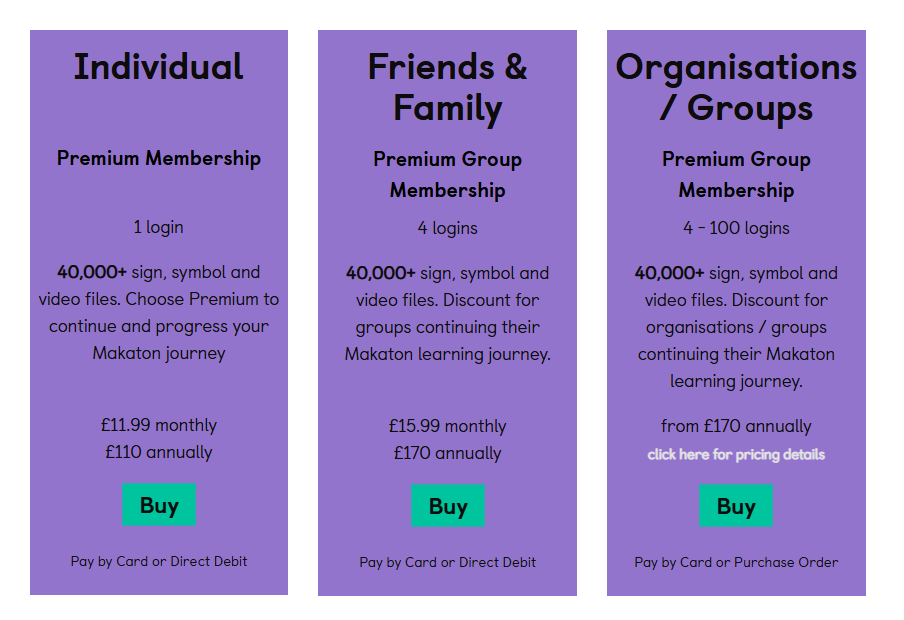
Step 6: It will take you to the payment page details of your chosen membership. For Individual membership you are able to choose between paying by direct debit on annual.
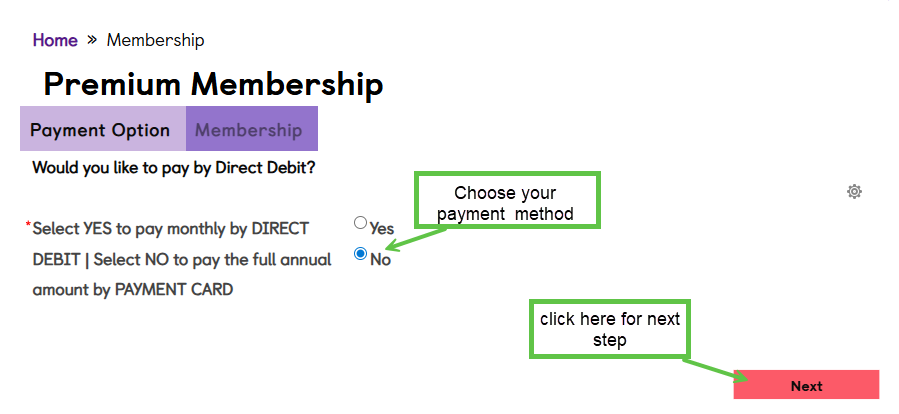
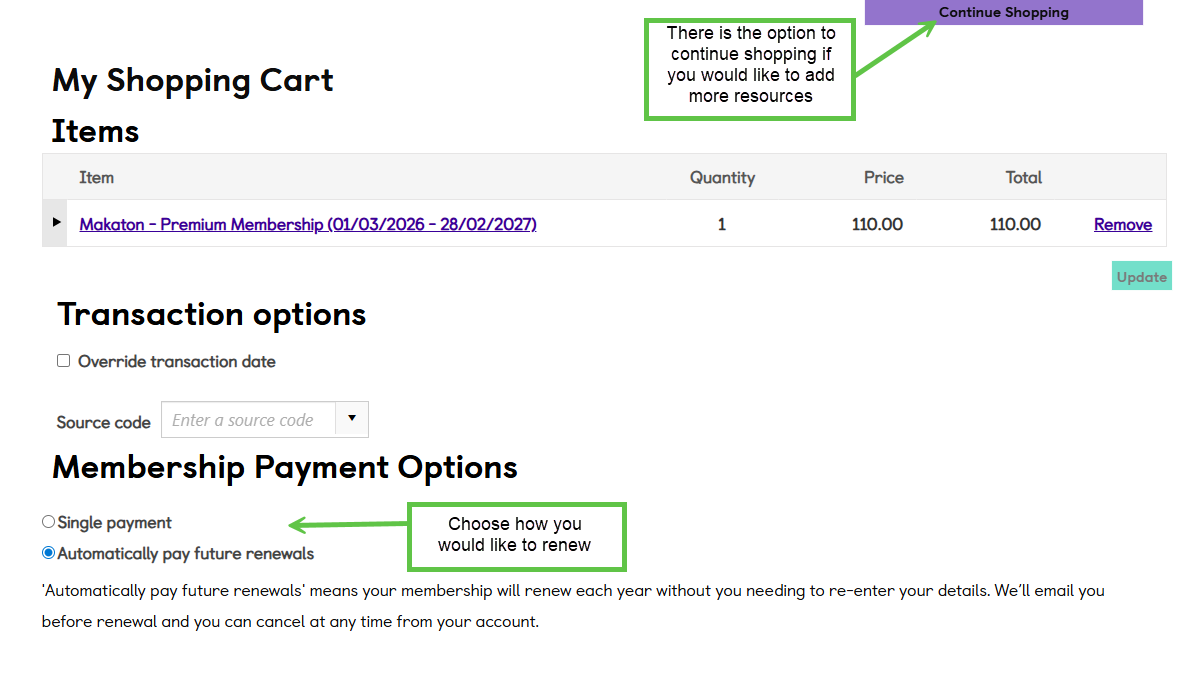
Step 7: This will show you the date of your annual membership
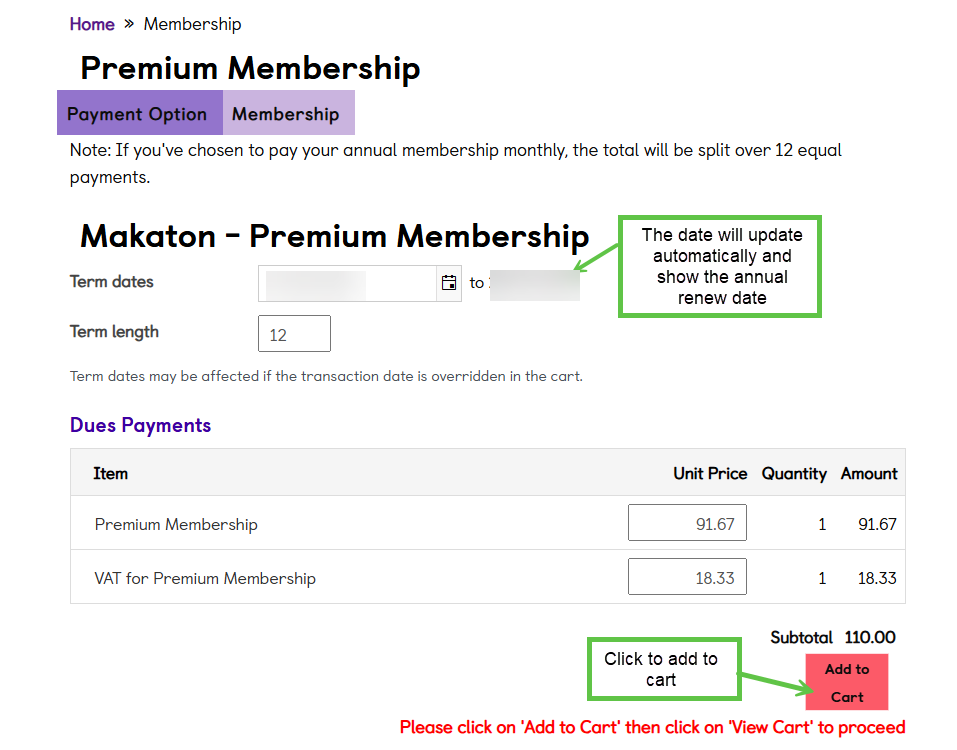
Step 8: Payment page will have this option at the top, showing the items in your cart,
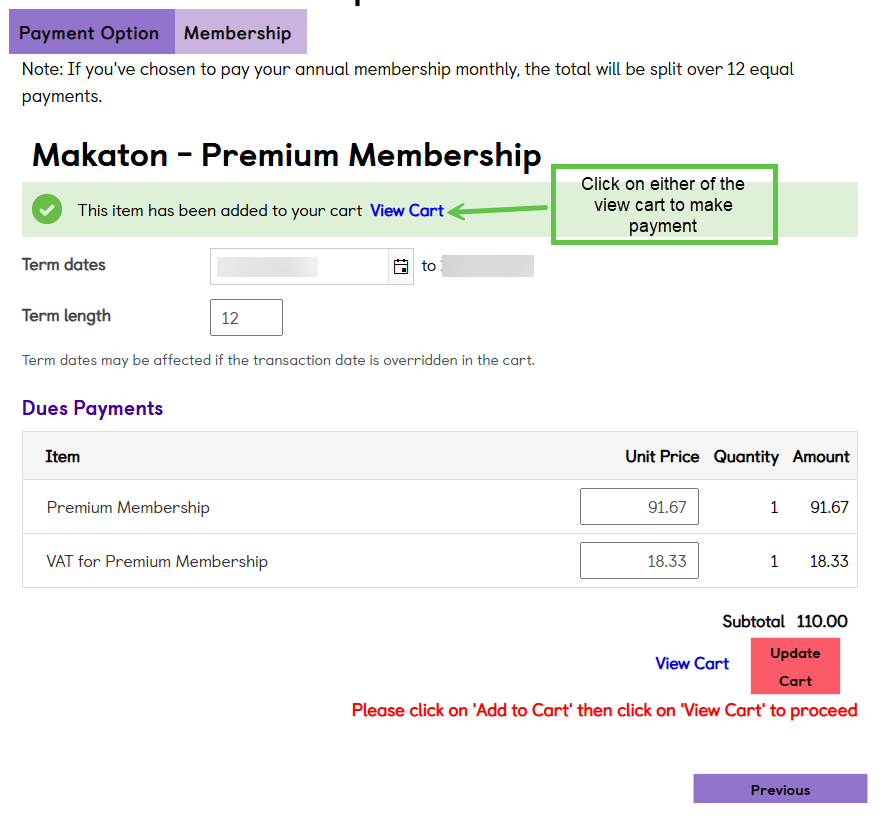 You can check your cart details and how you would like to renew
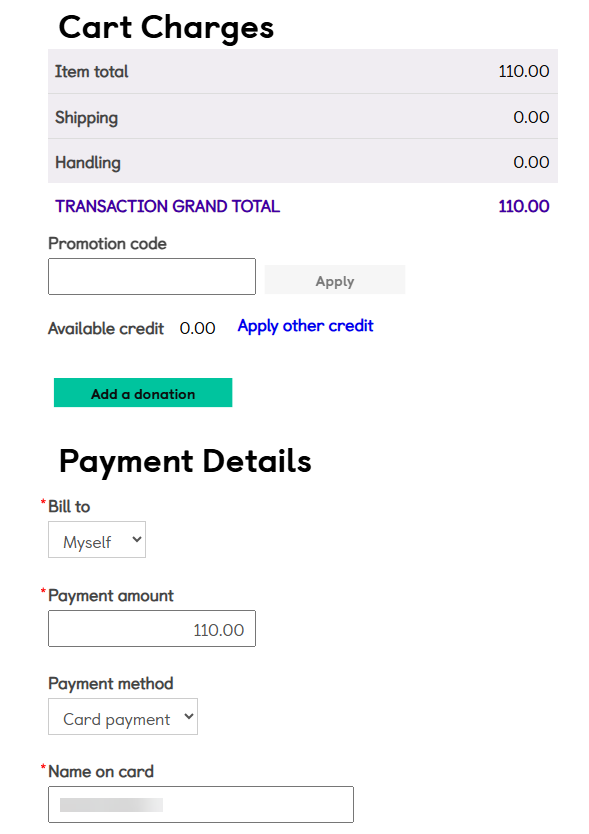
Below on the same page will show the Cart details. Please complete this
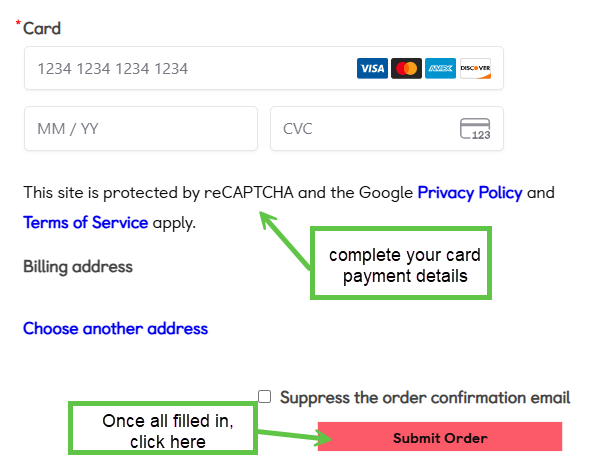
Step 9: You will be taken to your order confirmation page where you can:

Or enter another email if payment confirmation needs to be sent to someone other than the email registered to your login, i.e. your finance team at work.

You are now updated to a Premium member for Makaton membership. Please take a look at the benefits of being a Premium member. If you have any questions please email help@makaton.org